View/Search Messages
A view tab shows messages from syslog storage that match a time range and a filter. A view layout defines the columns, colors, and the message details panel.
| A view tab only reads the storage: closing it or changing its request does not change the stored messages. |
View tabs are saved on the server for each user. They come back after Manager restarts, and in a remote session from another computer.
| Only the tab settings are saved — name, time range, filter, and layout — not the loaded messages. When Manager starts again, the restored tabs are empty: click Refresh on a tab to run its search again. |
Open a View Tab
Open a view tab in one of these ways:
-
► In the Messages section of the main toolbar, click View/Search → View/Search Messages…
-
► In the same View/Search drop-down, choose one of up to 20 presets (Preset: <name>).
-
► Click a message count on the Storage tab.
-
► On the Server tab diagram, click
 on Syslog Storage.
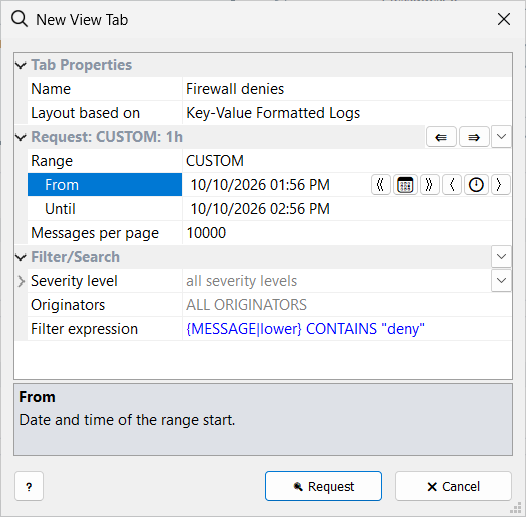
In the New View Tab window:
-
Enter a Name for the tab — a short descriptive name, such as
Firewall denies, helps you recognize it among other open tabs. -
In Layout based on, choose a view layout. Its configuration is copied to the tab, so you can later edit the tab’s own copy without changing the stored layout (Layout of a Tab).
-
Choose the time Range — see below.
-
Set Messages per page — the page size (100 … 200000). When more messages match, the results are split into pages; Prev. Page and Next Page on the tab toolbar move between them.
-
Set Filter/Search: severity, originators, and filter expression. Only matching messages are loaded from the syslog storage.
-
Click Request.
To change the request of an open tab later, click Request… on the tab toolbar: it opens the same settings in the Modify View Request window.
Time Range
Days follow the time zone of the Syslog Watcher Server — for a remote connection, the server’s time zone, not that of the Manager computer. The tab’s status bar shows the time zone in use (Time zone:).
| Range | Messages |
|---|---|
TODAY |
The current calendar day. |
YESTERDAY |
The previous calendar day. |
RECENT |
The last N minutes, hours, or days, up to the current time — for example, the last 2 hours. |
ENTIRE STORAGE |
Everything in storage. |
CUSTOM |
Between the From and Until date and time you set. |
Set and Adjust the Range
- RECENT
-
In Last, type a number from 1 to 999 or use the − and + buttons, then choose minutes, hours, or days from the drop-down.
- CUSTOM
-
Set From and Until: type a date and time, or use the buttons next to each value:
-
《 / 》 — one day back or forward
-
📅 — pick a date in a calendar
-
〈 / 〉 — one hour back or forward
-
🕛 — set the time to Midnight or Midday
From cannot be later than Until: if you move one past the other, the other one follows to the same time.
-
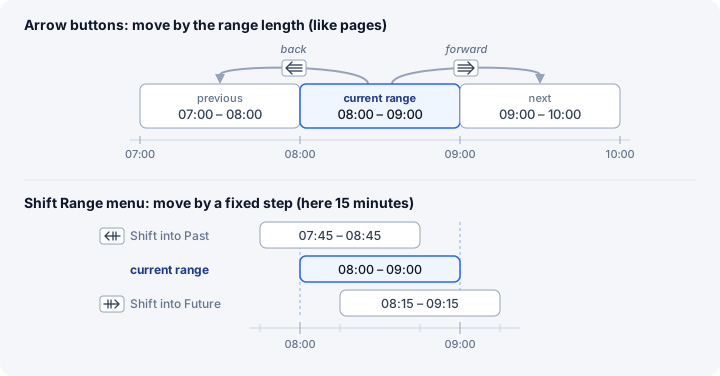
With CUSTOM, the Range row also moves the whole range without changing its length:
-
the two arrow buttons move it back or forward by its own length — for example, from one hour to the previous hour
-
the drop-down next to them shifts it by a fixed step: Shift Range into Past / Shift Range into Future by 15 minutes … 30 days
Search Progress
A search over a wide range with a filter expression can take a while. A progress window then shows how many messages have been checked so far and which point in the time range the search has reached.
| To speed up a search, narrow the time range or filter by severity and originators — these use the storage index. A filter expression has to check every message. |
Tab Toolbar
 Tab Tab 
|
Tab settings — see Tab Menu below. |
 Layout… Layout…
|
Edit the tab’s view layout. |
 Request… Request…
|
Change the time range and the message filter of the tab. |
 Prev. Page Prev. Page
|
Load the previous page of messages. |
 Next Page Next Page
|
Load the next page of messages. |
 Refresh Refresh
|
Load new messages now. |
| Auto: |
Refresh automatically every N seconds or minutes, or Auto: OFF. |
Filter Rows 
|
Show or hide the filter row. |
Find 
|
Show or hide the find bar. |
Tab Menu
| Command | Description |
|---|---|
Rename Tab… |
Change the name shown on the tab. |
Sort: ↑ Newest at top |
Show the newest messages first. |
Sort: ↓ Newest at bottom |
Show the newest messages last. |
Auto-Scroll to New Messages |
After each refresh, scroll to and select the newest message — useful with Auto: refresh. |
Result Line and Status Bar
The result line of the tab shows what was Requested (range and filters) and what was Loaded: the number of messages, the page number when there is more than one page, and the time of the first and last loaded message.
The status bar shows:
-
Total — messages loaded
-
Visible — messages left after the filter row
-
Selected — selected rows
-
Time zone — the server time zone used for the range
-
Tab updated — how long ago the tab was refreshed, and how long the request took
Message Grid
Each row is one message; the columns come from the view layout. Row colors come from the layout’s color rules.
Filter Row
The filter row under the column headers has a text cell for each column. Type text in a cell to keep only the rows whose value in that column contains it (case-sensitive). When several cells have text, a row must match all of them. While the filter row is hidden (Filter Rows on the tab toolbar), its filters are not applied and all loaded rows are shown.
| The filter row works only on the loaded page. To search the whole storage, change the tab’s Filter/Search with Request…. |
Find
Find searches in ANY column or in one selected column.
Matching ignores letter case.
 Next and
  Prev. move to the next match below or above the current row, wrapping around at the end.
| Find searches only the rows shown in the grid: the loaded page, after the filter row. Rows hidden by the filter row are skipped. |
Message Details
The message details panel shows the selected message as HTML, formatted by the layout’s HTML Sections. Its position (left, right, or bottom) and size are layout settings.
Copy Messages
Select the rows to copy:
-
click a row to select it
-
Ctrl + click to add or remove a row
-
Shift + click to select all rows between the current row and the clicked one
-
Ctrl+A to select all rows shown in the grid
Then right-click the selection and choose a command:
| Command | Copies |
|---|---|
Copy as Shown (CSV) |
The visible columns, comma-separated. |
Copy as Shown (TAB) |
The visible columns, tab-separated — pastes into a spreadsheet. |
Copy as Parsed (JSON) |
The parsed fields of each message as JSON. |
Copy as Received (TEXT) |
The raw messages as received. |
Report Incorrect Parsing… sends the selected message to EZ5 when a parser splits it wrongly.