Email Accounts
An email account holds the SMTP server settings that the Syslog Watcher Server uses to send email. You set them up once and select the account by name in the Send Emails feature and in diagnostic emails.
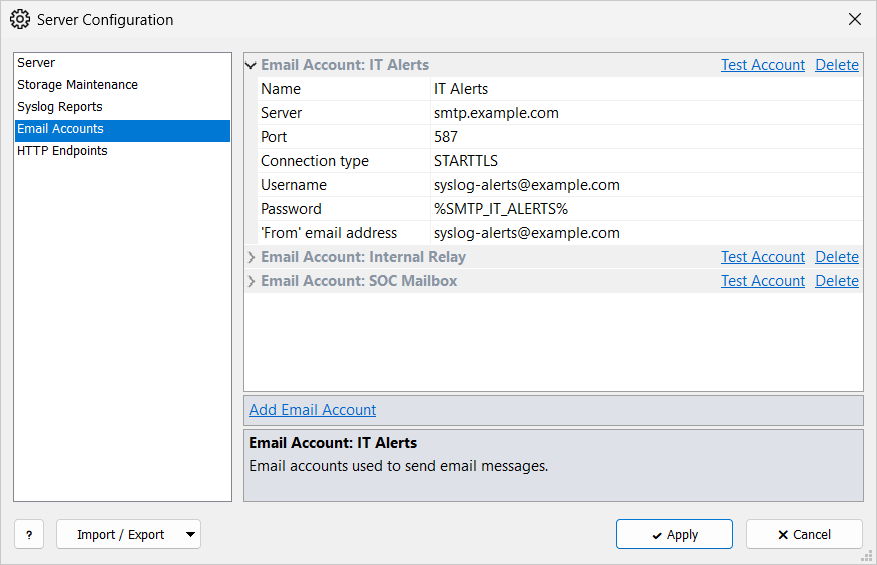
Add an Account
-
In the Server section of the main toolbar, click
 Server →
  Server Configuration…
 -
Select the Email Accounts page.
-
Click Add Email Account.
-
Fill in the account settings.
-
Click Apply.
Use the SMTP settings that your mail provider gives for email clients.
| Many providers require an app password or an SMTP relay for automated senders. |
Email Account
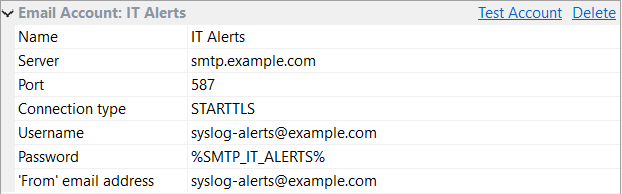
| Name |
Name shown in features and in the Diagnostics settings. Required. |
| Server |
SMTP server IP address or host name, for example |
| Port |
SMTP port; the list offers 25, 465, and 587. Usually 587 for STARTTLS and 465 for SMTPS. |
| Connection type |
SMTP (non-secure), SMTPS (TLS from the start), or STARTTLS (plain connection upgraded to TLS). |
| Username |
SMTP login, usually an email address or account name. |
| Password |
SMTP password.
Use a secret string ( |
| 'From' email address |
Sender address of the emails. Required. The SMTP server must accept it as a sender for this login. |
Test the Account
-
Click Test Account on the account.
-
In Send a test email to:, enter a recipient.
-
Click Send Email.
The window shows SUCCESS or FAILED, followed by the SMTP server’s response. The test uses the settings currently in the window, so you can test before you click Apply.
The email is sent from the Syslog Watcher Server computer, so the test also checks DNS, firewall, and TLS settings on that computer.
Delete an Account
Click Delete on the account, confirm, and click Apply.
| Features that use the account stop sending until another account is selected. |