View Layouts
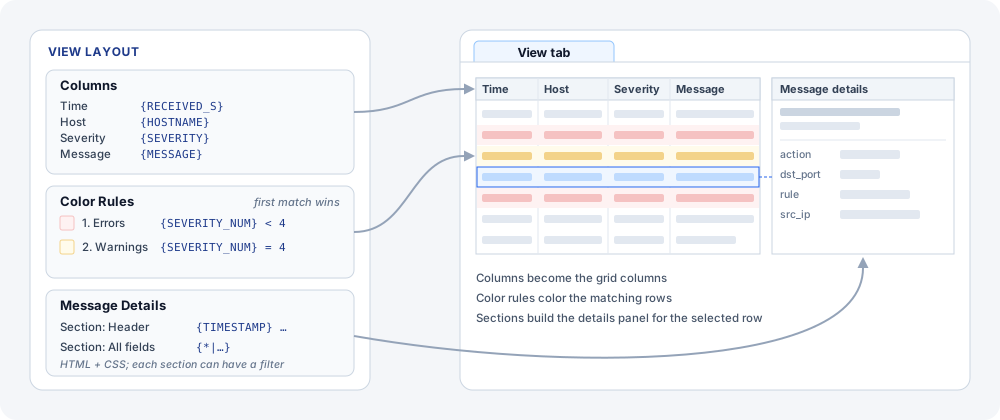
A view layout defines how a view tab displays messages: the grid columns, row colors, and the message details panel. Different message formats call for different layouts — for example RFC syslog headers, key-value logs, or a vendor format with a field collection.
Create a Layout
The easiest way is to start from a layout that is close to your message format:
-
In the Messages section of the main toolbar, click
 Layouts.
 -
Select an Installation layout and click Duplicate. A New View Layout window opens with a copy named
<name> copy 1. Installation layouts are read-only; the copy can be edited. -
In General Properties, change the Name.
-
Adjust the columns — the fields shown in the grid.
-
Add color rules to highlight important rows.
-
Design the message details panel.
-
Click Create. The layout is saved in syslog storage.
To use the layout, choose it in Layout based on when you open a view tab.
View Layouts Window
In the Messages section of the main toolbar, click Layouts.
The list groups layouts by where they come from. Installation layouts ship with the product and are read-only; editing one offers to create an editable copy instead. Your own layouts appear under Syslog Storage and are saved in the syslog storage index.
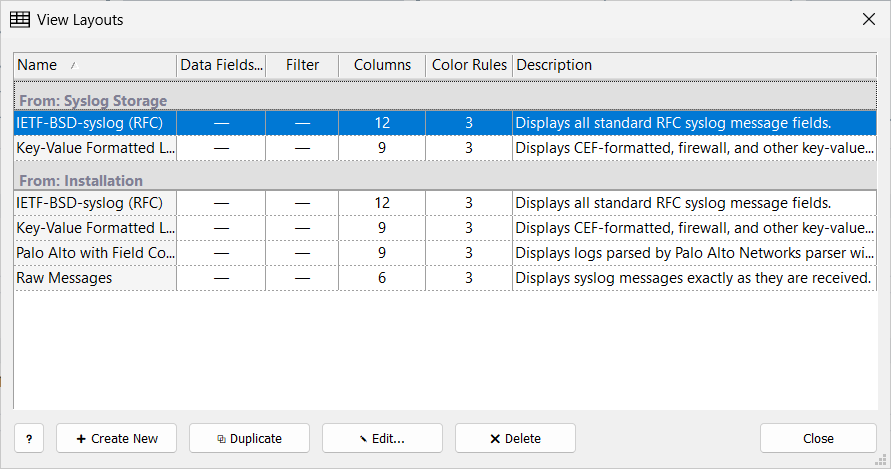
The installation includes these layouts:
-
IETF-BSD-syslog (RFC) — all standard RFC syslog fields
-
Key-Value Formatted Logs — details panel that lists every extracted field
-
Raw Messages — the message as received
-
more layouts are added in product updates
View Layout
Import / Export saves the layout to a JSON file (Export to File…) or loads one (Import from File…).
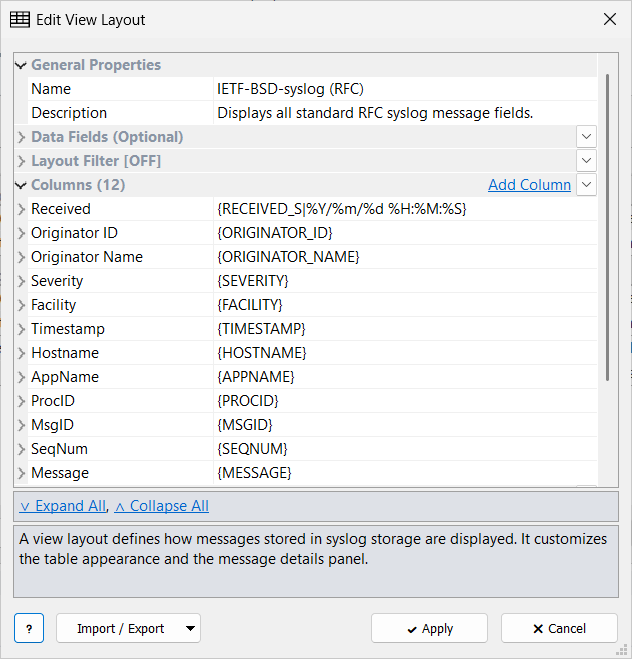
The layout editor has these sections:
| General Properties |
Name (required, unique) and Description. |
| Data Fields (Optional) |
Extra fields from the message body, for use in columns, color rules, and details; see Field Extraction. |
| Columns |
The grid columns. |
| Color Rules |
Row colors. |
| Message Details |
The HTML details panel. |
| Columns, color rules, and HTML sections are ordered lists, and the order matters. |
Columns appear in the grid from left to right, the first matching color rule wins, and sections are added to the details panel from top to bottom. Use the ↑ and ↓ buttons on an item to rearrange the list.
Columns
Click Add Column to add a new column. A layout needs at least one column.
| Setting | Description |
|---|---|
Column title |
Header text. |
Column format |
Fields and text, for example |
Column width |
Width in pixels. |
Color Rules
Click Add Color Rule to add a new rule.
| Setting | Description |
|---|---|
Rule name |
Name of the rule, for example |
Rule filter |
Messages the rule applies to, for example |
Text color / Background color |
Type an RGB value, for example |
Rules are checked from top to bottom, and the first rule that matches sets the colors of the row.
| Put specific rules above general ones. For example, a rule for one firewall’s denies must come before a rule for all errors, or the error color always wins. |
Message Details
Click Add Section to add a new section.
| Setting | Description |
|---|---|
Section name |
Name of the section. |
Messages the section is shown for. Leave it blank to show the section for every message. |
|
HTML with message fields. |
Use section filters to show extra details only for some messages, for example a firewall section only for firewall messages.
Example section that lists every extracted field in a table:
<p>{TIMESTAMP|EscHTML}<br><strong>{SEVERITY}</strong> / {FACILITY}</p>
<table>
{*|<tr><td>{FIELD_NAME|EscHTML}</td><td><strong>{FIELD_VALUE|EscHTML}</strong></td></tr>}
</table>
{*|...} repeats the template inside it once for every extracted field; {FIELD_NAME} and {FIELD_VALUE} are the name and value of the current field.
See Message Fields.
Apply EscHTML to message text in HTML sections so <, >, and & in syslog messages display correctly.
|
Layout of a Tab
A view tab keeps its own copy of the layout it was created from. Layout… on the tab toolbar edits that copy, so the change affects only that tab.
| Editing a stored layout does not change tabs already opened with it. To apply the new version to an open tab, use Load from Existing Layout… in the tab’s layout editor. |
In the layout editor of a tab:
-
Save Layout to Storage… — save the tab’s layout to a stored layout (new or existing)
-
Load from Existing Layout… — replace the tab’s layout with a stored or installation layout