Export to Files
Export to Files writes matching syslog messages to text files. Use it to:
-
► feed another product that reads only files
-
► keep an extra copy of selected logs
-
► keep a separate folder for each originator
| The feature reads messages from syslog storage, so a slow or failing export never blocks collection (see How a Feature Processes Messages). |
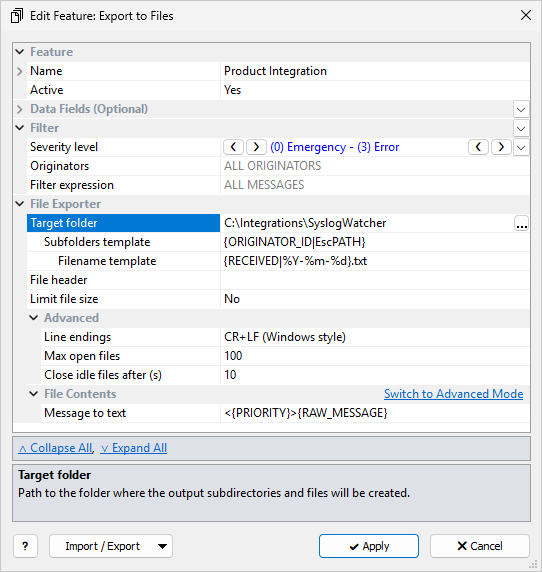
The common Feature, Data Fields, and Filter sections are described in Managing Features. This page covers the File Exporter section.
File Exporter
| Setting | Description |
|---|---|
Target folder |
Required.
Folder where the subfolders and files are created.
The Syslog Watcher Server service account must be able to write to it.
Click |
Subfolders template |
Optional.
Format string for subfolder names.
Example: |
Filename template |
Required.
Format string for the file name.
Example: |
File header |
Optional. Text written once at the start of each new file, for example CSV column names. Files that already have content are not changed. |
Limit file size |
No (default): files grow without limit; only the filename template starts new files. Yes: start a new file when Maximum size (KB) is reached (default 1000). See Limit File Size and File Names. |
The Advanced subsection has settings whose defaults suit most cases:
| Setting | Description |
|---|---|
Line endings |
Added after each line: CR+LF (Windows style) (default) or LF (Unix style). File header uses the same line endings. |
Max open files |
How many files the server keeps open at once: 1–999, default 100. Set it to 1 so that the server does not keep files locked between writes; this is slower. |
Close idle files after (s) |
Close a file that has not been written to for this many seconds: 1–3600, default 10. |
Templates use message fields and date/time modifiers, for example {RECEIVED|%Y-%m-%d}.
Dates from {RECEIVED} use the server time zone, not UTC and not the originator’s clock.
Use {RECEIVED_UTC} for UTC days.
|
Subfolder and Filename Examples
Paths are under Target folder (here C:\Integrations\SyslogWatcher).
Use EscFNAME on any field that can contain characters not allowed in Windows file names.
A / or \ in Subfolders template creates nested folders.
One file per day for all originators
Subfolders:  (none)
Filename:    {RECEIVED|%Y-%m-%d}.txt
Result path: C:\Integrations\SyslogWatcher\2026-08-25.txt
One folder per originator, one file per day
Subfolders:  {ORIGINATOR_ID|EscFNAME}
Filename:    {RECEIVED|%Y-%m-%d}.txt
Result path: C:\Integrations\SyslogWatcher\firewall-01\2026-08-25.txt
Year and month folders, one file per day
Subfolders:  {RECEIVED|%Y}/{RECEIVED|%m}
Filename:    {RECEIVED|%d}.txt
Result path: C:\Integrations\SyslogWatcher\2026\08\25.txt
One folder per originator, one file per severity
Subfolders:  {ORIGINATOR_NAME|EscFNAME}
Filename:    {SEVERITY}.txt
Result path: C:\Integrations\SyslogWatcher\Core Firewall\Error.txt
File Contents
In simple mode, File Contents has one Message to text template.
Example: <{PRIORITY}>{RAW_MESSAGE} writes each message as received, including the syslog priority prefix.
Click Switch to Advanced Mode to define several File Content Sections (Add Section). Each File section has:
-
a Section filter (blank = ALL MESSAGES that passed the feature filter)
-
a Message to text template
For each message, every section whose filter matches writes one line, in list order. If no section matches, nothing is written for that message.
Use several sections when originators need different output formats: give each section a filter for its originators and the template the reader expects. You can also use sections for optional parts: add a section for each part, with a filter that decides when the part is written.
Formatted Files
Each matching section writes one line, so Message to text can produce any line-based format. The examples below are CSV and JSON Lines. Use escape modifiers so that commas, quotes, and line breaks in the message do not break the format.
Example: CSV
Quote text fields and apply EscCSV, which doubles embedded quotes.
Put the column names in File header so that each new file starts with a header line:
Filename:        {RECEIVED|%Y-%m-%d}.csv
File header:     "received","originator","severity","message"
Message to text: "{RECEIVED|%Y-%m-%dT%H:%M:%S%Ez}","{ORIGINATOR_ID|EscCSV}","{SEVERITY}","{MESSAGE|EscCSV}"
A line break inside a message still splits the CSV record across several physical lines, even inside quotes. If the reader cannot handle that, use JSON Lines.
Example: JSON Lines
Apply EscJSON inside JSON string values so that quotes and line breaks stay on one line:
Filename:        {RECEIVED|%Y-%m-%d}.jsonl
Message to text: {{"received":"{RECEIVED|%Y-%m-%dT%H:%M:%S%Ez}","originator":"{ORIGINATOR_ID|EscJSON}","severity":"{SEVERITY}","message":"{MESSAGE|EscJSON}"}}
In Message to text, a single { starts a message field.
Write {{ and }} for the literal braces of a JSON object.
|
Limit File Size and File Names
The output path is Target folder + Subfolders template + Filename template, evaluated for each message.
With Limit file size set to No, the file name is used as is.
The daily template {RECEIVED|%Y-%m-%d}.txt produces one file per day:
C:\Integrations\SyslogWatcher\2026-08-25.txt
With Limit file size set to Yes, the exporter starts a new file when Maximum size (KB) is reached.
It adds a three-digit number before the extension: -000, then -001, -002, and so on:
C:\Integrations\SyslogWatcher\2026-08-25-000.txt
C:\Integrations\SyslogWatcher\2026-08-25-001.txt
C:\Integrations\SyslogWatcher\2026-08-25-002.txt
Each path from the templates has its own numbering (for example, one sequence per originator folder). After a restart, export continues in the highest existing number for that path. Each new part starts with File header, if set.
Notes
-
If Target folder is on a network share, give the Syslog Watcher Server service account (Local System by default) share and NTFS write access, or run the service under an account that has it.