Syslog Reports
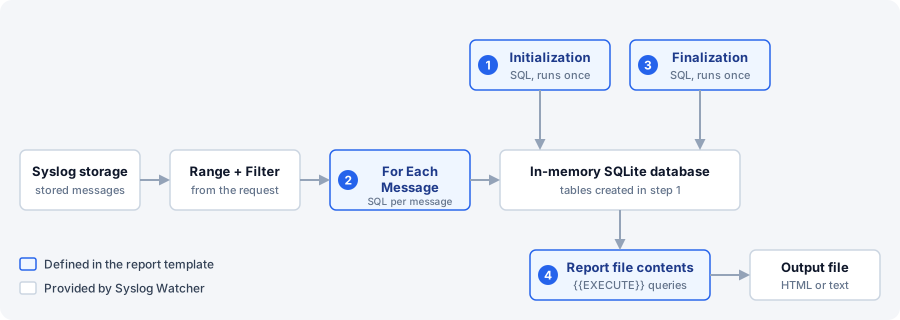
A syslog report reads messages already in syslog storage, aggregates them with SQL in an in-memory SQLite database, and writes an HTML or text file.
Reports are not part of the collector pipeline and are not features. The collector keeps writing to storage while a report runs.
The analysis rules live in a report template. A generate or schedule request picks a template, a message time range, and an optional filter.
How a Report Is Built
-
An empty in-memory database is created.
-
Initialization SQL runs once.
-
Each stored message in the range that passes the request filter is tested against each For Each Message command; matching commands run.
-
Finalization SQL runs once.
-
Report file contents is filled (
{{EXECUTE}}queries, time fields) and written to the output file.
Reports Menu
On the Messages toolbar, click Reports.
-
Generate Report Now… — run once in Manager (local storage must be open). Not listed when Manager is connected to a remote server — schedule the report instead.
-
Show Scheduled Reports — open the Scheduled Reports tab (server must be present).
-
Manage Report Templates… — Report Templates.
Generate Report Now
Manager runs the report immediately and stays unavailable until generation finishes (Generating Report…). Local syslog storage must be open.
| Generate Report Now… is not available when Manager is connected to a remote server. Schedule the report so the remote Syslog Watcher Server generates it. |
-
Reports → Generate Report Now….
-
Set Report properties.
-
Click Generate.
-
Choose the output path when prompted.
The file is saved where chosen — not to the server Output folder. After a successful save, Manager opens the file.
Scheduled Reports
The Scheduled Reports tab lists history and upcoming runs. The Syslog Watcher Server service generates these reports.
-
Reports → Show Scheduled Reports.
Columns: Date/Time, Status, Report template, Filter, Range, Repeat, Messages, and Result (output path when Done, speed while …processing…).
Toolbar:
| Control | Description |
|---|---|
Schedule New Report… |
Create a scheduled request. |
Edit… |
Change the Report template and Filter of the selected row. Run type stays as it was; use Reschedule… for a new pattern. For Once, At can still be changed. Messages is shown for As soon as possible and Once. |
Reschedule… |
Open a new schedule from the selected request. |
Delete / Cancel |
Delete removes a finished history row and its file. The caption becomes Cancel while the run has not finished. |
Show reports for: |
How far back the list goes (Last 3 days … Last 365 days). |
Open Report |
Open a Done report file. |
Status values include Scheduled, Waiting…, …processing…, Done, Error, and Canceled.
Schedule a Report
-
Click Schedule New Report….
-
Set Report properties, including Run.
-
Click Schedule.
Generate on a schedule must be on, and Output folder must be set.
Report Properties
| Setting | Description |
|---|---|
Report template |
Template that defines SQL collection and the output file. Required. Names prefixed with Installation: are built-in templates. |
Run |
When the server starts the report (schedule windows only). |
Messages |
Time range of stored messages (Range). Shown for Generate Report Now, As soon as possible, and Once. |
Filter |
Optional filter (severity, originators, expression). Blank means all messages in the range. Narrow severity and originators first. |
Run
| Value | Description |
|---|---|
As soon as possible |
Start when a worker is free. Messages sets the range. |
Once |
Run at At (date and time). Messages sets the range. |
Recurring |
First run at First at, then every Repeat every interval. That interval is also the message range for each run. The next window starts where the previous one ended. |
Weekly |
Midnight on the selected weekday (Run on). Each run covers the previous 7 days. |
Monthly |
Midnight on the selected day of the month (Run on (month day), 1–28). Each run covers the previous month. |
Server Configuration
Scheduled generation is configured in Server Configuration.
On the Server toolbar, click Server → Server Configuration…, then open Syslog Reports.
| Setting | Description |
|---|---|
Generate on a schedule |
Master switch for the server report engine. |
Concurrent tasks |
How many reports may run at once (1–9). Further due reports stay Waiting…. |
Include folders |
Extra folders for |
Output folder |
Directory for scheduled report files. Required when Generate on a schedule is on. |
Keep reports (days) |
How long finished history rows and their files are kept (1–9999). |