Syslog Server
Syslog Watcher Server is the Windows service (Syslog Watcher 7 Server, SW7Server) that runs:
The Server is separate from the Syslog Collector, which receives and stores messages.
The Server service is designed to run all the time.
If the Server is stopped, start it from Manager on the server computer: in the Server section of the main toolbar, click  Server → Start Syslog Server.
Server Tab
The Server tab shows a diagram of how messages move through the syslog server: Originators → Syslog Collector → Syslog Storage → Server Features. Click a part to open it or to show its details below the diagram.
| Part | Click | Buttons |
|---|---|---|
Originators |
Opens the Syslog Originators window. |
— |
Syslog Collector |
Shows collector status, network interfaces, and discarded messages; see Monitoring. |
|
Syslog Storage |
Shows stored messages by severity and the storage archive status. |
|
Server Features |
Shows the features table; see Monitoring Features. |
|


To change the scale of the tab, hold Ctrl and turn the mouse wheel, or set Server tab scale in Manager Settings.
Server Configuration
In the Server section of the main toolbar, click Server →  Server Configuration…
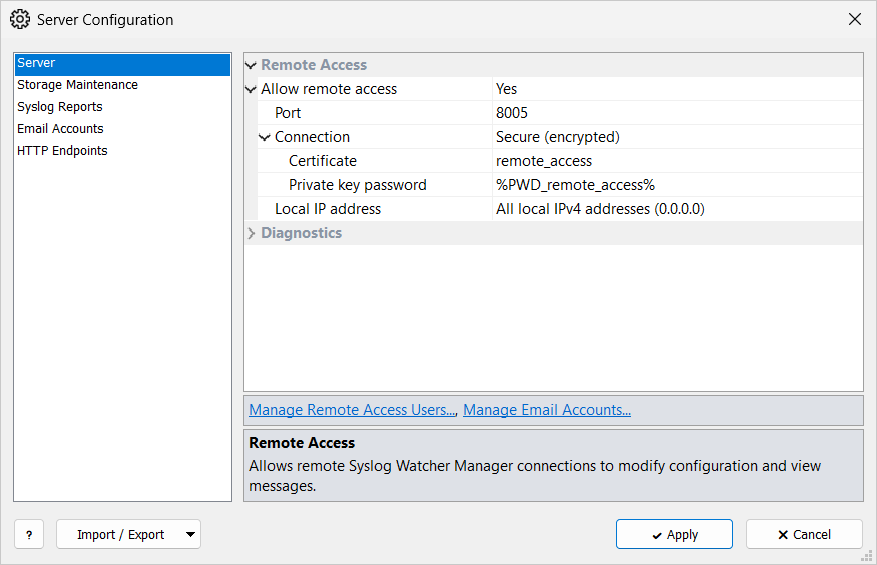
| Server |
Remote Access and Diagnostics (email warnings and errors). |
| Storage Maintenance |
Storage retention and the storage archive. |
| Syslog Reports | |
| Email Accounts |
SMTP accounts for features and diagnostic emails. |
| HTTP Endpoints |
Web servers for the Send HTTP Requests feature. |
To copy the settings to another server, use Import / Export: Export to File… saves them to a .config.json file, and Import from File… loads one into the window.
Review the imported settings and click Apply.