Viewing Messages
Syslog messages the collector receives end up in syslog storage. You work with those messages in view tabs in Manager. A view tab is a read-only window into the storage: you can open, filter, and close tabs freely, and the stored messages stay as they are.
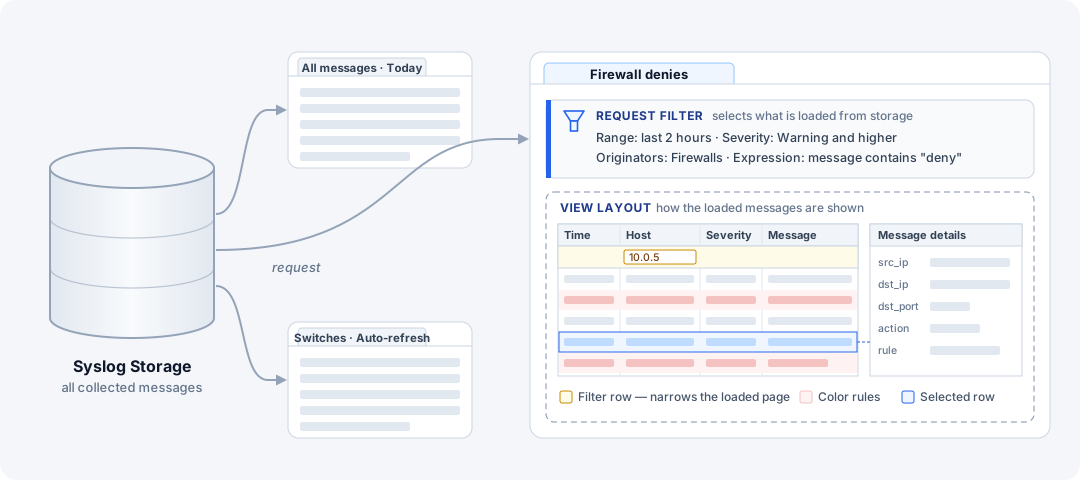
Each tab sends its own request to the storage. The request filter — time range, severity, originators, and a filter expression — searches the whole storage and decides which messages are loaded. The view layout decides how they look: columns, row colors, and the details panel for the selected message. The filter row and Find then narrow down or search the loaded page, without going back to the storage.
View Tabs
To open a tab, click View/Search in the Messages section of the main toolbar, pick a time range and a filter, and click Request. The tab loads the matching messages from storage and shows them as a grid, one message per row.
Alternatively, open a view tab from the Storage tab: click a message count there, and a new tab opens with exactly those messages — for example, the errors received in a given hour.
Keep as many tabs open as you need: one per firewall, one for errors only, one following live traffic with auto-refresh. Tab settings are saved on the server for your user account, so the tabs come back after Manager restarts or when you connect from another computer; click Refresh to load their messages again.
See View/Search Messages.
View Layouts
A view layout controls how a tab presents messages: which fields appear as columns, which rows get highlighted, and what the details panel shows for the selected message. A layout that fits your message format makes the grid easy to scan.
Syslog Watcher ships with a number of view layouts, including standard RFC syslog and key-value logs. For other devices, duplicate one of these layouts and adjust the copy to the fields your devices send. Each tab keeps its own copy of the layout, so you can tweak a single tab without affecting the others.
See View Layouts.
View/Search Presets
If you run the same search often — say, firewall denies over the last two hours — save it as a View/Search preset. Presets are listed under the View/Search button on the main toolbar, so you can start a new tab with the stored range, filter, and layout instead of filling them in each time.
See View/Search Presets.
| For counts and trends over longer periods, a report is usually a better fit than scrolling through a view tab. |