License Management
Use the Licenses window to install, select, and uninstall licenses on the Syslog Watcher Server. Several licenses can be installed at once, but only the selected one applies. If no license is selected, the Free License applies: up to 3 originators and 5000 messages per hour.
In the Server section of the main toolbar, click  Licenses.
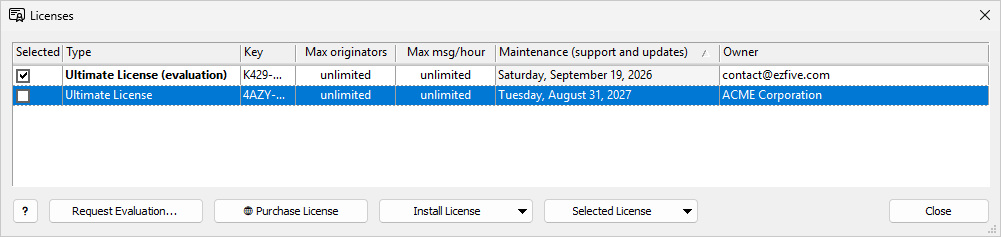
To try a paid license first, see Evaluation License.
Install a License
-
Click Install License → License Key…
-
Fill in the Install License window:
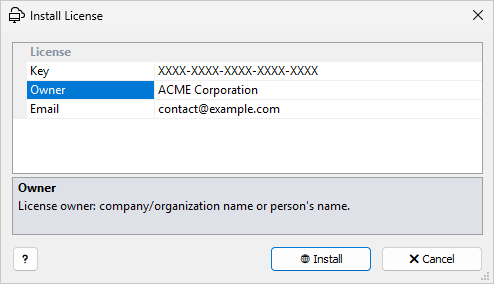 Install License window
Key The purchased license key, in the form
XXXX-XXXX-XXXX-XXXX-XXXX.Owner Company, organization, or person.
Email Used for technical support and notifications.
-
Click 🌐 Install.
Manager sends the request to the EZ5 license server and installs the license it returns. If no other license is selected, the new license is selected automatically; otherwise, select it.
If the license server cannot be reached, see Offline Installation.
Offline Installation
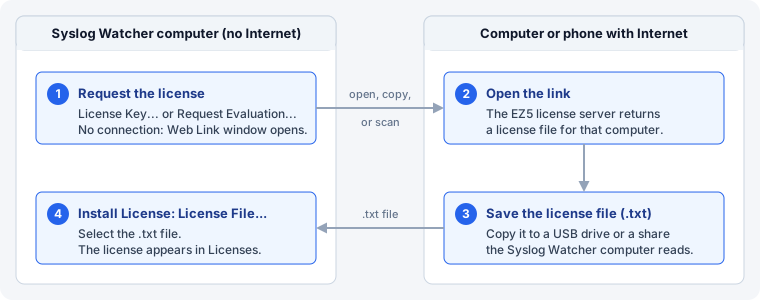
When the license server cannot be reached, Manager opens a Web Link window with a request link. This happens with License Key…, Reinstall License…, and Request Evaluation….
-
Get the request link to a computer or phone with Internet access, using one of the Web Link window buttons:
-
Open Link opens the link in the default browser on this computer.
-
Copy Link copies the link.
-
Save Link saves the link to a
.urlfile. -
Link in QR code shows the same link for a phone camera.
-
-
Open the link. The license server returns a license file (
.txt). -
Copy the file to the Syslog Watcher computer, for example with a USB drive or a network share.
-
Click Install License → License File…, select the
.txtfile, and click Open. Manager installs the file without contacting the license server.
| A license file works only on the Syslog Watcher Server computer where the request link was created. |
Select a License
Check Selected in the license row, or double-click the row. Only one license can be selected; its Type is shown in bold.
| A selected license that is (expired) or (inactive) gives only the Free License limits. A license is inactive when its maintenance ended before this Syslog Watcher version was released; renew maintenance to use it. |
Reinstall a License
Reinstall License… installs a paid license again using only its key. Use it to get the updated license from the license server, for example after the maintenance period is extended or the license type is changed.
-
Highlight the license row.
-
Click Selected License → Reinstall License…
-
Enter the license Key.
-
Click 🌐 Reinstall.
If the license server cannot be reached, see Offline Installation.
Uninstall a License
Highlight the license row, then click Selected License → Uninstall License…
-
Paid license: enter the Key used to install it and click 🌐 Uninstall. If the license server cannot be reached, a Web Link window opens.
-
Evaluation license: removed immediately, without a key or confirmation.
| When the selected license is uninstalled, no other license is selected automatically. The Free License applies until you select another license. |
Purchase, Upgrade, or Renew
-
🌐 Purchase License: the Syslog Watcher order page.
-
For a paid license, Selected License → Upgrade License or Renew Maintenance: the upgrade or renewal page for that license.
Each command opens a Web Link window with a link to the page. Click Open Link to open it in the browser, or use Copy Link or the QR code to open it on another device.
After an upgrade or a maintenance renewal, reinstall the license to apply the changes.