Managing Features
You create and control features in the Server Features window. It is available when Manager is connected to a local or remote server, not when only a storage folder is open.
Server Features
Open the window in one of these ways:
-
► In the Server section of the main toolbar, click
 Features.
 -
► On the Server tab, click the gear symbol next to Server Features in the diagram.
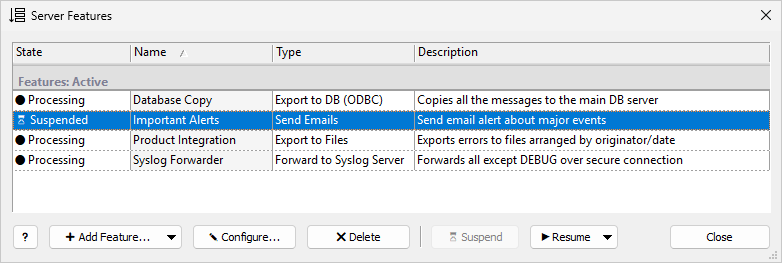
 Add Feature… Add Feature…
|
Create a feature of the chosen type. |
 Configure… Configure…
|
Open the selected feature (View… without permission to change features). |
 Suspend Suspend
|
Pause the selected feature. |
 Resume Resume
|
Start the selected suspended feature (drop-down). |
| Delete |
Delete the selected feature. |
Configuring a Feature
-
Select a feature and click
Configure…, or double-click the feature. -
Change the settings in the Edit Feature window.
-
Click Apply.
Without permission to change features, the button is  View… and the window is read-only.
Every feature window has the same Feature, Data Fields, and Filter sections. The type-specific section is described on each type’s page (see Feature Types).
Suspending a Feature
Select the feature and click Suspend.
The feature stops reading storage but keeps its position. Messages collected in the meantime stay in storage, so you can process them when you resume.
Resuming a Feature
Select a suspended feature, click Resume, and choose where to start:
| Command | Processing starts with |
|---|---|
From Suspension Time |
The first message after the feature’s saved position. Messages collected while the feature was suspended are processed. |
From Now (Skip Messages) |
Messages collected after you resume. Messages collected while the feature was suspended are skipped. |
From Date/Time (Reset)… |
Messages from the date and time you choose in the Resume From Date/Time window. Messages already handled after that time are processed again. |
A feature that has never run, such as a new one, has no saved position. Its Resume drop-down shows only From Date/Time… and From Now.
Deleting a Feature
Select the feature, click Delete (or press Delete), and confirm. The feature’s saved position is deleted too.
| To keep a feature for later, set Active to No instead of deleting it. The server then stops and unloads the feature but keeps its settings and saved position; set Active back to Yes to continue. |
This is not the same as suspending a feature: a suspended feature stays loaded and is shown on the Server tab; an inactive one is not.
Importing and Exporting a Feature
The Import / Export button in a feature window saves the feature’s settings to a file or loads them from one. Use it to back up a feature before a risky change, or to copy a feature to another Syslog Watcher 7 installation.
-
Export to File… saves the settings shown in the window, including changes not yet applied, to a
.featureor.jsonfile. -
Import from File… loads a
.featureor.jsonfile into the window. Review the settings, then click Create or Apply.
You can import only a file of the same feature type as the window; Manager ignores a file of another type. The Export to Files, Export to DB (ODBC), Forward to Syslog Server, and Send Emails windows can also import a file exported from Syslog Watcher 6; Manager asks before converting it.
| Exported files can contain connection strings, host names, and passwords. Store them securely, and use secret strings instead of plain-text passwords in features. |
Data Fields (Optional)
Use this section only when the filter or the templates need extra fields taken from the message text.
-
Regex for extracting fields: one regular expression whose named groups
(?<FIELD_NAME>...)become fields such as{FIELD_NAME}. -
Fields: extra fields whose value is a format string.
-
Field Collections: stored rule sets that pick a rule per message type.
See Field Extraction for details and examples.
Filter
The feature filter selects the stored messages that the feature processes. It has the same Severity level, Originators, and Filter expression settings as other filters; see Filtering.
| Narrow by severity and originators first. They use storage indexes, so the feature reads fewer messages. |
Most feature types also have section filters in advanced mode. A message must pass the feature filter and a section filter to use that section.
Related Topics
-
Features — feature types and how a feature processes messages
-
Monitoring Features — live status on the Server tab
-
Message Fields —
{FIELD}syntax in templates